


Secure DNS: Encrypted DNS, Malware Filtering & Setup Guide
Secure DNS: Encrypted DNS, Malware Filtering & Setup Guide
DNS security is one of the simplest ways to improve your protection against phishing, malware and unwanted websites. Yet many people still rely on their internet provider's default DNS settings without considering the alternatives.
Every time you visit a website, open an application or connect to an online service, your device normally uses the Domain Name System (DNS) to find the server it needs.
Traditional DNS has two important weaknesses.
First, DNS requests are commonly transmitted without encryption, potentially revealing the domains you access to anyone capable of monitoring the network.
Second, traditional DNS resolution does not automatically prevent your device from connecting to malicious websites.
Modern DNS services can help address both problems.
Encrypted DNS protects the privacy and integrity of DNS requests. DNS filtering helps prevent connections to known malicious or unwanted domains.
Together, they provide a useful additional layer of protection for Windows PCs, mobile devices and business networks.
In this guide, we'll explain how these technologies work, compare free DNS security providers and show you how to enable them.
Why DNS Security Matters
The Domain Name System is sometimes described as the internet's telephone directory.
When you enter a website address, such as systemassure.co.uk, your device requests the IP address associated with that domain.
This happens constantly, often without you noticing.
Unfortunately, DNS is also used by cybercriminals.
Phishing emails direct users towards fraudulent websites. Malware may attempt to contact command-and-control servers. Compromised applications can connect to infrastructure used to steal information.
Many of these connections begin with a DNS lookup.
A security-focused DNS resolver can recognise some of these malicious domains and prevent the connection before the website or service is reached.
This is particularly valuable because it operates across many applications, not just your web browser.
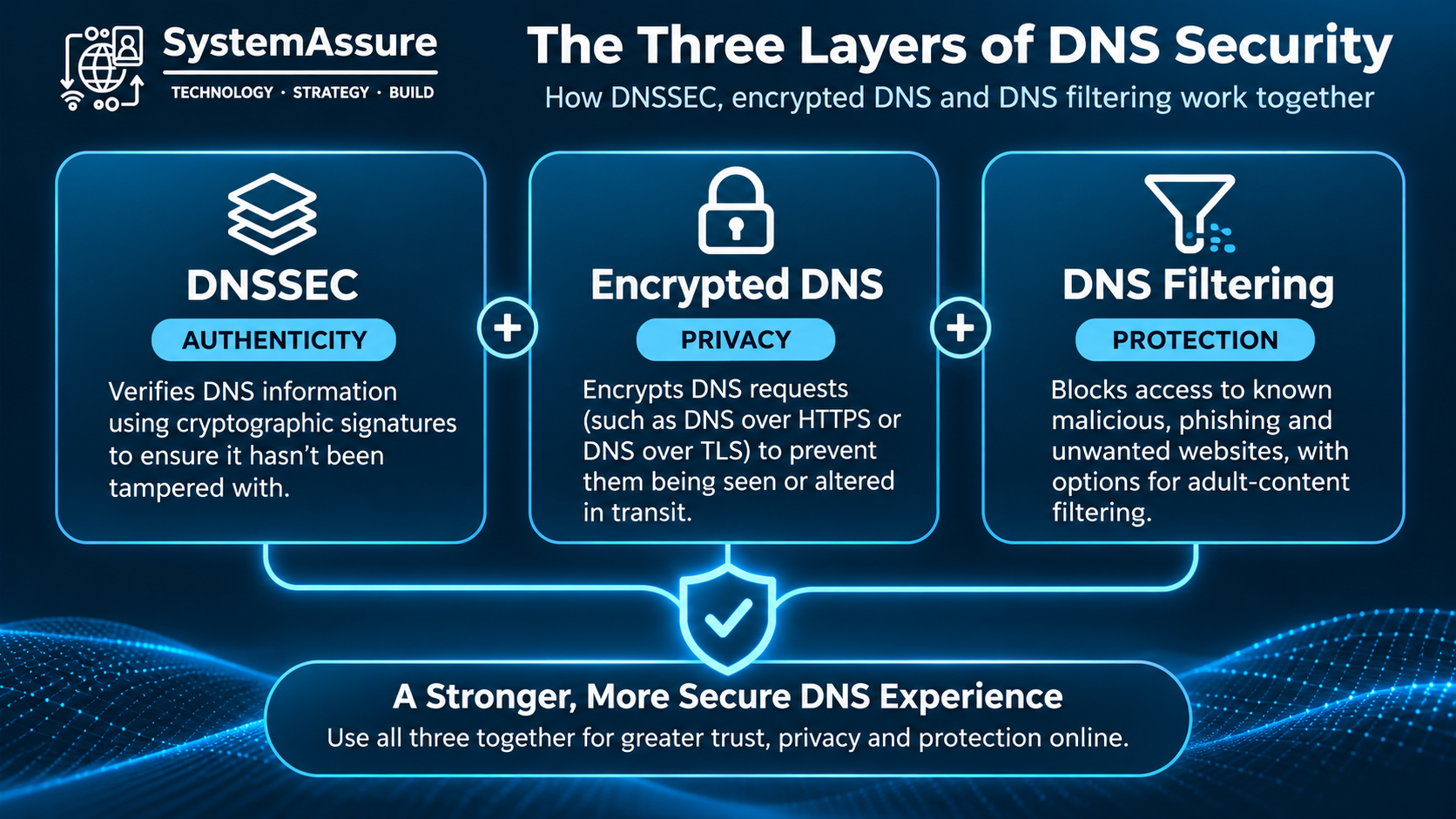
Three Layers of DNS Security
There are three complementary technologies worth understanding.
1. DNSSEC: Can You Trust the DNS Answer?
DNSSEC adds cryptographic signatures to DNS records, allowing validating resolvers to check the authenticity and integrity of signed DNS information.
This reduces the risk of attackers successfully substituting fraudulent DNS records for properly signed domains.
DNSSEC does not encrypt DNS requests or block malicious websites.
We explore this in more detail in our separate SystemAssure article about DNSSEC.
2. Encrypted DNS: Can Someone See Your DNS Requests?
Traditional DNS requests are commonly sent without encryption.
This means an internet provider, network operator or attacker with access to the network may be able to observe the domains your device requests.
Encrypted DNS protects the connection between your device and its DNS resolver.
Two common technologies are:
DNS over HTTPS (DoH)
DNS queries are transmitted through an encrypted HTTPS connection, usually using port 443.
DoH is supported by Windows 11, modern browsers and many DNS applications.
DNS over TLS (DoT)
DNS queries use a dedicated encrypted TLS connection, normally on port 853.
DoT is widely supported on Android devices and by various routers and DNS applications.
Both technologies protect DNS requests against interception and manipulation between your device and the resolver.
However, encrypted DNS does not make your internet activity anonymous. Destination IP addresses and other connection information may still reveal the services you access.
3. DNS Filtering: Should the Connection Be Allowed?
DNS filtering adds a security decision to the resolution process.
Before returning an IP address, the DNS resolver checks whether the requested domain matches a filtering policy.
Depending on the provider, that policy might block:
Known malware distribution websites
Phishing and credential-stealing domains
Command-and-control infrastructure
Advertising and tracking domains
Adult content and other restricted categories
If a domain is blocked, the resolver refuses or alters the response so the device cannot resolve the destination through that service.
DNS filtering is particularly useful against known threats, but it is not a replacement for antivirus software, browser protection or endpoint security.
It cannot reliably detect every new malicious domain, and applications using direct IP connections or alternative DNS services may bypass it.
Choosing a Secure DNS Provider
Several established providers offer free public DNS services.
However, their filtering capabilities differ considerably.
Provider | Malware protection | Adult content filtering | Custom policies |
|---|---|---|---|
Cloudflare | Yes, Families | Yes, Families | Through Gateway |
Quad9 | Yes, secure resolver | No standard family tier | Limited |
Google Public DNS | No dedicated malware filtering | No | No |
AdGuard DNS | Security and tracker filtering | Yes | Personal plans |
NextDNS | Yes | Yes | Extensive controls |
Google Public DNS is a reliable general-purpose resolver, but it is not designed as a content-filtering service.
Cloudflare and Quad9 provide straightforward security-focused alternatives.
AdGuard DNS and NextDNS offer additional capabilities for users who want greater control over the types of content their devices can access.
Cloudflare: Three Levels of DNS Protection
Cloudflare provides three public DNS configurations, each with a different filtering policy.
Protection level | Preferred DNS | Alternate DNS |
|---|---|---|
Standard, unfiltered |
|
|
Block malware and phishing |
|
|
Block malware and adult content |
|
|
All three services are free.
The standard resolver focuses on privacy and DNS resolution without content filtering.
The malware-filtering resolver blocks domains identified as malicious.
The family resolver adds adult-content filtering to the malware protection.
For most individuals and small businesses, Cloudflare's malware-filtering service is a sensible starting point.
Quad9: Security-Focused DNS
Quad9 takes a slightly different approach.
Its primary secure resolver automatically blocks domains associated with known malicious activity, using threat intelligence from multiple sources.
Protection level | Preferred DNS | Alternate DNS |
|---|---|---|
Malware protection |
|
|
No threat blocking |
|
|
Quad9 is particularly suitable for users whose primary objective is reducing exposure to malicious domains rather than filtering general website content.
Its standard secure service also performs DNSSEC validation.
AdGuard DNS: Security, Advertising and Family Protection
AdGuard provides additional filtering options.
Protection level | Preferred DNS | Alternate DNS |
|---|---|---|
Default filtering |
|
|
Family protection |
|
|
The default service blocks advertising and tracking domains, including domains identified through its filtering rules.
The family service adds adult-content filtering and supported safe-search protections.
AdGuard also offers a non-filtering resolver and configurable personal DNS services.
NextDNS: More Control Over DNS Security
NextDNS provides a more configurable approach.
Rather than choosing from a small number of fixed resolver addresses, users can create a DNS configuration with their own security and privacy settings.
Depending on the configuration, this can include threat intelligence, advertising and tracker blocking, parental controls, allowlists and denylists.
This can be useful for families, technically confident users and smaller organisations wanting more granular DNS policies.
Some advanced features and usage levels require a paid plan.
Which DNS Security Service Should You Choose?
The right service depends on what you want to achieve.
Your priority | Suggested option |
|---|---|
Basic DNS privacy | Cloudflare Standard |
Protection against malware and phishing | Cloudflare Malware or Quad9 |
Malware protection and adult-content filtering | Cloudflare Families |
Blocking advertising and trackers | AdGuard DNS |
Custom security and content policies | NextDNS |
Centrally managed business DNS policies | Managed protective DNS service |
There is no single resolver that is best for everyone.
For most home and small-business users, starting with malware-filtering DNS is a simple way to improve security without introducing complicated management requirements.
Important: Use preferred and alternate DNS servers with the same filtering policy. Mixing a malware-filtering resolver with an unfiltered backup may allow some requests to bypass your intended protection.
How to Enable Secure DNS on Windows 11
Windows 11 includes native support for DNS over HTTPS, allowing you to encrypt DNS requests without installing additional software.
However, it is important to select both the correct DNS addresses and the corresponding encrypted DNS endpoint.
Step 1: Open Network Settings
Open:
Settings → Network & internet
Select your active Wi-Fi or Ethernet connection.
Find DNS server assignment and select Edit.
Choose Manual.
Step 2: Choose Your DNS Security Policy
For example, to enable Cloudflare malware protection, enter:
Preferred DNS:
1.1.1.2Alternate DNS:
1.0.0.2
For malware and adult-content filtering, use:
Preferred DNS:
1.1.1.3Alternate DNS:
1.0.0.3
Enable IPv4 and enter your chosen addresses.
Step 3: Configure DNS over HTTPS
Windows may recognise some public DNS providers automatically.
However, do not assume that Windows will automatically recognise every filtered DNS endpoint.
If a custom DNS over HTTPS template is required, use the matching endpoint:
Cloudflare policy | DNS over HTTPS endpoint |
|---|---|
Standard |
|
Malware |
|
Malware + Adult |
|
Where supported, select the option to configure a manual DNS over HTTPS template and enter the appropriate URL.
If Windows does not offer that option for your chosen resolver, you may need to register the DNS over HTTPS server using Windows DNS client configuration tools or use a supported DNS client application.
Do not assume that simply entering the DNS server's IP address enables encryption.
Step 4: Prevent Unencrypted Fallback
Where Windows provides an option to fall back to plaintext DNS, disable it if you want to enforce encrypted DNS.
This prevents Windows from silently reverting to unencrypted DNS when the encrypted service is unavailable.
Be aware that DNS resolution may fail on networks that block encrypted DNS.
Step 5: Configure IPv6
If IPv6 is enabled on your network, configure the corresponding IPv6 resolver addresses and encryption settings.
For Cloudflare malware protection:
2606:4700:4700::11122606:4700:4700::1002
For malware and adult-content filtering:
2606:4700:4700::11132606:4700:4700::1003
Using matching IPv4 and IPv6 filtering policies helps prevent inconsistent protection.
Step 6: Save and Test
Save your settings.
Verify that your device uses the expected resolver, that DNS over HTTPS is active and that the selected filtering policy is operating correctly.
What About Windows 10?
Windows 10 does not offer the same generally available native DNS over HTTPS configuration as Windows 11.
Users can still configure DNS filtering by changing their DNS server addresses, but that does not automatically encrypt DNS traffic.
Encrypted DNS can be enabled within supported browsers or through a trusted DNS application.
As standard Windows 10 support ended in October 2025, organisations should prioritise moving unsupported devices to a supported operating system or an appropriate extended-security arrangement.
How to Enable Secure DNS on Android
Android 9 and later supports encrypted DNS through a feature called Private DNS.
This makes it particularly easy to enable both encryption and filtering.
Open:
Settings → Network & internet → Private DNS
The exact location varies by Android version and device manufacturer.
Select Private DNS provider hostname.
Enter the hostname corresponding to your preferred filtering policy.
Provider / protection | Private DNS hostname |
|---|---|
Cloudflare Standard |
|
Cloudflare Malware |
|
Cloudflare Malware + Adult |
|
Quad9 Malware |
|
AdGuard Default |
|
AdGuard Family |
|
Select Save.
Android will attempt to use the selected encrypted DNS resolver for system DNS requests across Wi-Fi and mobile networks.
Some VPNs, managed-device policies and network configurations may override or interfere with this setting.
For most Android users wanting additional security, Cloudflare's malware-filtering hostname is a straightforward choice.
How to Enable Secure DNS on iPhone and iPad
Apple devices support encrypted DNS, including DNS over HTTPS and DNS over TLS.
However, iOS and iPadOS do not normally provide the same simple Private DNS hostname configuration as Android.
Instead, encrypted DNS is typically configured using a trusted provider application or DNS configuration profile.
Option 1: Use a DNS Provider Application
Providers such as Cloudflare and AdGuard offer applications that can configure DNS protection.
Install the application from the App Store, review the permissions it requests and select the appropriate DNS protection settings.
Be aware that some applications also offer VPN functionality. DNS-only protection and a full VPN are not necessarily the same service.
Option 2: Install a DNS Configuration Profile
Some DNS providers offer configuration profiles for Apple devices.
To use one:
Visit the DNS provider's official website.
Select the desired DNS filtering policy.
Download the configuration profile.
Open Settings and locate the downloaded profile.
Review and install the profile.
Verify that encrypted DNS and filtering are active.
Only install configuration profiles from trusted sources.
For organisations, DNS configuration can also be distributed using mobile device management.
What About Secure DNS in Web Browsers?
Modern browsers such as Chrome, Edge and Firefox support DNS over HTTPS.
This is useful when operating-system-level encrypted DNS is unavailable.
For example:
Google Chrome
Settings → Privacy and security → Security → Use secure DNS
Microsoft Edge
Settings → Privacy, search, and services → Security → Use secure DNS
Mozilla Firefox
Settings → Privacy & Security → DNS over HTTPS
Select a supported provider or enter a custom DNS over HTTPS endpoint where the browser allows it.
For example, Cloudflare malware protection uses:
https://security.cloudflare-dns.com/dns-query
Browser-level encrypted DNS generally protects the browser's own DNS requests, rather than every application on the device.
Also be aware that a browser configured with a different DNS provider may bypass filtering configured at operating-system or router level.
For consistent protection, align browser DNS settings with the device's DNS security policy.
Can You Protect Your Entire Home Network?
Yes.
Many home routers allow you to configure DNS servers for connected devices.
Using Cloudflare's malware-filtering addresses, for example, can provide a common DNS filtering policy for devices that use the router's DNS configuration.
This can help protect smart TVs, gaming consoles, IoT devices and other equipment that may not offer convenient DNS security settings.
However, there are limitations.
Changing the DNS addresses on a router does not necessarily encrypt DNS requests between the router and the resolver.
For encrypted DNS, the router must explicitly support DNS over HTTPS or DNS over TLS, or use another trusted encrypted DNS forwarding solution.
Devices may also bypass router DNS settings by using their own resolvers.
A router-level DNS policy is therefore useful, but should not be considered a guarantee that every device is protected.
How to Test That DNS Filtering Is Working
After configuring secure DNS, it is important to verify both encryption and filtering.
These are separate checks.
Check 1: Which DNS Resolver Are You Using?
Visit:
This can help identify the DNS resolver your device is using.
For Cloudflare users, the following page provides additional diagnostics:
Check 2: Is DNS Encryption Enabled?
Check whether your connection is using DNS over HTTPS or DNS over TLS.
Simply seeing the correct DNS provider does not prove encryption is enabled.
If you use multiple network interfaces, IPv6, a VPN or browser-specific DNS settings, verify those configurations as well.
Check 3: Is Malware Filtering Active?
Cloudflare provides test domains specifically for checking its Families filtering policies.
For malware protection:
https://malware.testcategory.com/
For adult-content filtering:
https://nudity.testcategory.com/
These are designated test domains, not actual malware sites.
A correctly configured filtering resolver should block the applicable test domain.
Check 4: Are Legitimate Services Still Working?
After enabling DNS filtering, verify that your normal websites and applications continue to operate.
Occasionally, a legitimate domain may be incorrectly classified or a service may depend on a domain blocked by your selected policy.
If something stops working, check the DNS provider's documentation and reporting mechanisms before disabling protection entirely.
Should Businesses Use Public DNS Filtering?
DNS filtering is valuable for businesses, but the approach should be more controlled than simply changing every computer to use a public resolver.
Business networks frequently depend on internal DNS services for Active Directory, internal applications, device discovery and security monitoring.
Changing managed computers to use an external DNS resolver can break internal name resolution or bypass existing security controls.
A better approach is to establish an organisation-wide DNS security policy.
This should define approved resolvers, encryption requirements, threat-filtering policies, internal DNS handling, logging requirements and permitted exceptions.
For organisations using Microsoft 365, Entra ID and Intune, DNS security should be considered alongside endpoint protection, conditional access and device compliance policies.
Managed protective DNS services can also provide centralised configuration, reporting and policy enforcement. If you are interested in Commercial DNS Filtering we suggest you look at DNSFilter.
What DNS Filtering Cannot Protect Against
DNS filtering is a useful security control, but it has limitations.
It generally cannot protect against every newly created malicious domain, attacks hosted on legitimate domains or malware that connects directly to IP addresses.
It may also be bypassed by applications using their own DNS resolvers.
Encrypted DNS protects DNS communications but does not encrypt all network traffic or hide every destination.
DNS filtering should therefore complement endpoint security, browser protection, patch management, phishing awareness and other security controls.
Conclusion: Make DNS Security Part of Your Everyday Protection
DNS is fundamental to almost everything we do online.
Yet many devices still use DNS settings selected automatically by their network or internet provider, without considering the privacy and security implications.
Modern DNS services make it relatively easy to improve protection.
DNSSEC helps verify DNS authenticity. Encrypted DNS protects DNS requests in transit. DNS filtering helps prevent connections to known malicious or unwanted domains.
For most individuals, enabling encrypted DNS with malware filtering is a practical improvement that can be completed in minutes.
For businesses, DNS protection should form part of a wider security strategy with consistent policies, centralised management and appropriate monitoring.
The key is not simply to choose a faster DNS resolver.
It is to choose a resolver that provides the right combination of privacy, security and filtering for your requirements.
Frequently Asked Questions
About SystemAssure
SystemAssure provides independent technology strategy, Virtual CIO and CTO services, and practical advice on cybersecurity, technology governance and business risk.
Learn more at https://systemassure.co.uk/.